
Introduction
Voice memos provide a simple and efficient method to capture and share verbal notes. They are extremely useful for students recording lectures, professionals capturing meeting notes, or anyone preferring spoken reminders. The ability to send these recordings from your iPhone is crucial. This guide covers everything from recording to sharing voice memos, ensuring a seamless experience.

Getting Started with Voice Memos on iPhone
To begin sharing your voice memos, familiarize yourself with the Voice Memos app’s interface and features. Accessing the app is easy – swipe down on your home screen to find and open it through Spotlight search.
-
Accessing the Voice Memos App
Once you’ve opened the app, you will be greeted with a user-friendly interface featuring a record button and a list of saved recordings. -
Basic Features and Functions
Spend some time exploring the app’s layout. You can record, edit, and trim the audio clips, as well as mark special segments for future reference. Understanding these functionalities will make your sharing process smoother and more efficient.
With the basics covered, you are ready to create high-quality recordings for sharing.
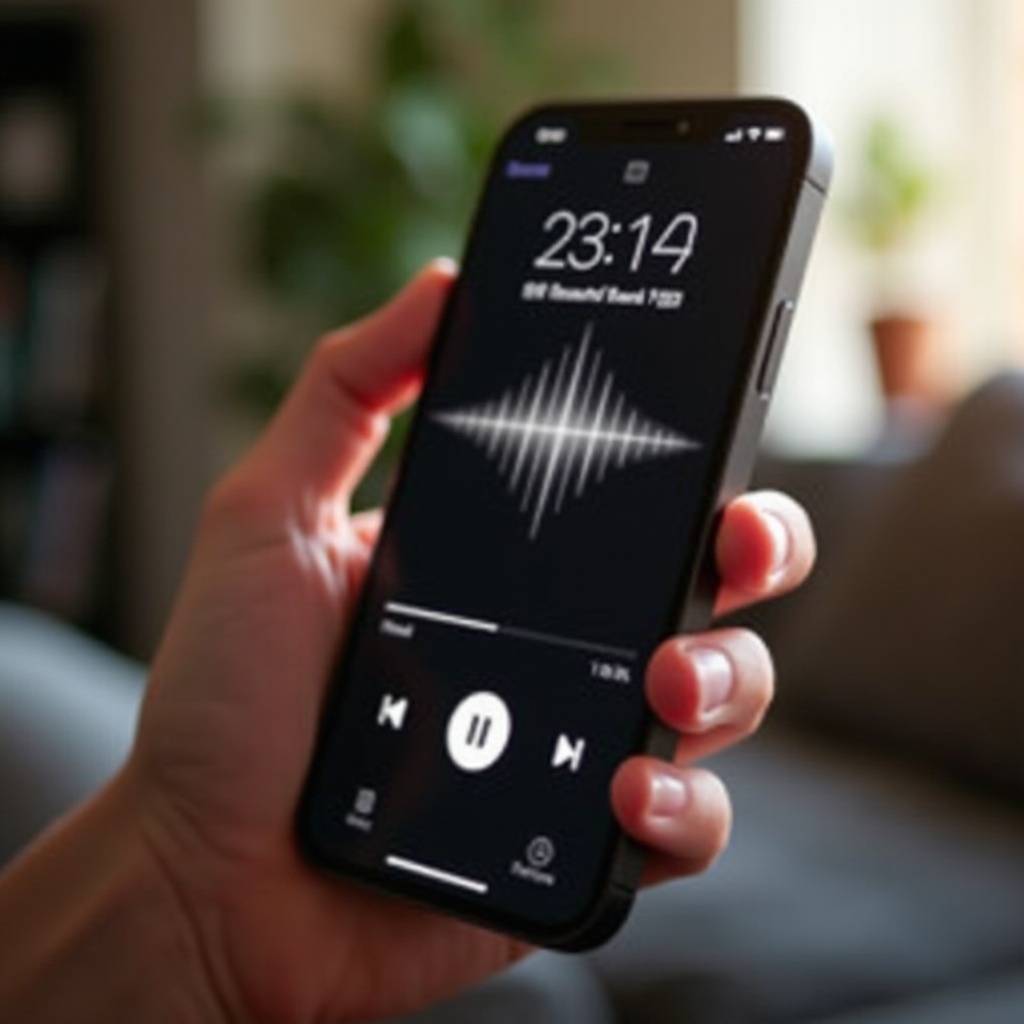
Recording Your Voice Memo
Creating clear, high-quality voice memos is essential to effective sharing.
- Step-by-Step Recording Process
- Launch the Voice Memos app.
- Press the red record button.
- Pause recording using ‘Pause’ and resume when ready.
-
Press ‘Done’ to finish recording, then name your memo.
-
Tips for High-Quality Audio
Keep your devices’ microphone unobstructed and record in quiet environments for better sound quality. Hold the phone at arm’s length to avoid breath sounds.
After successful recordings, your next step is sharing them effectively.

Sharing Voice Memos via Messages
Using iMessage is often the most straightforward approach for quick sharing.
- Using iMessage for Sharing
- Choose the memo you want to share.
- Tap the share icon and select ‘Messages’.
-
Enter your recipient’s contact and hit send.
-
Troubleshooting Common Issues
Should issues arise, check Wi-Fi or cellular data connectivity and ensure that the recipient’s iMessage is activated. Restarting the app or your device may help resolve these issues.
Having explored iMessage, let’s consider other sharing methods which offer broader options.
Alternative Methods to Share Voice Memos
Beyond messaging, emailing and using AirDrop can be effective alternatives.
-
Emailing Your Recordings
Select your memo, tap the share button, and choose ‘Mail’ for recipients preferring desktop access. -
Utilizing AirDrop for Quick Transfers
Enable Bluetooth, select your memo, and use the share icon to choose AirDrop, ideal for short-range transfers. -
Sharing Through Cloud Services
Share via platforms like iCloud, Google Drive, and Dropbox for recipients preferring cloud access, ensuring that your memos are accessible and secure.
Once you’ve shared memos, keeping them organized will streamline future retrieval.
Managing and Organizing Voice Memos
Managing your collection ensures you can quickly find and use recordings.
-
Editing and Trimming Your Memos
Navigate your memo library to trim or edit recordings for concise content using the editing tool. -
Labeling for Easy Access
Regularly label memos by topic, date, or importance, using concise labels that reflect the content for easier access.
As we manage storage, considering privacy becomes crucial when sharing sensitive or personal content.
Maintaining Privacy When Sharing Voice Memos
Safeguarding privacy is essential, especially when memos contain sensitive information.
-
Understanding iOS Privacy Settings
Enter ‘Settings’ and select ‘Privacy’ to examine apps authorized to access your memos, adjusting permissions for optimal security. -
Best Practices for Secure Sharing
Encrypt memos before emailing them and use share links with expiry for control. Implement these practices to enhance trust with recipients.
Emphasizing privacy completes the full circle of handling voice memos.
Conclusion
This guide has thoroughly addressed methods of handling voice memos on your iPhone, from starting with the app to sharing, organizing, and securing them. As you apply these practices, they will enrich your productivity and communication, whether personal or professional. Take these insights and make voice memos a centerpiece of your digital toolkit.
Frequently Asked Questions
How do I improve the sound quality of my voice memos?
Use external microphones and record in sound-absorbing environments to reduce echoes and achieve clearer audio.
Can I send voice memos to non-iPhone users?
Yes, you can email memos or use cloud services like Google Drive, Dropbox to share with non-iPhone users seamlessly.
What should I do if my voice memos aren’t sending?
Check network connections and ensure app permissions are correct. Restart your device to resolve ongoing issues.