
Introduction
Managing notifications on your iPhone can be a game-changer for productivity and user experience. This guide offers practical techniques for efficiently sliding off notifications, creating gifs of your actions, and customizing your device settings. These strategies ensure your iPhone works in your favor, enhancing focus and efficiency.
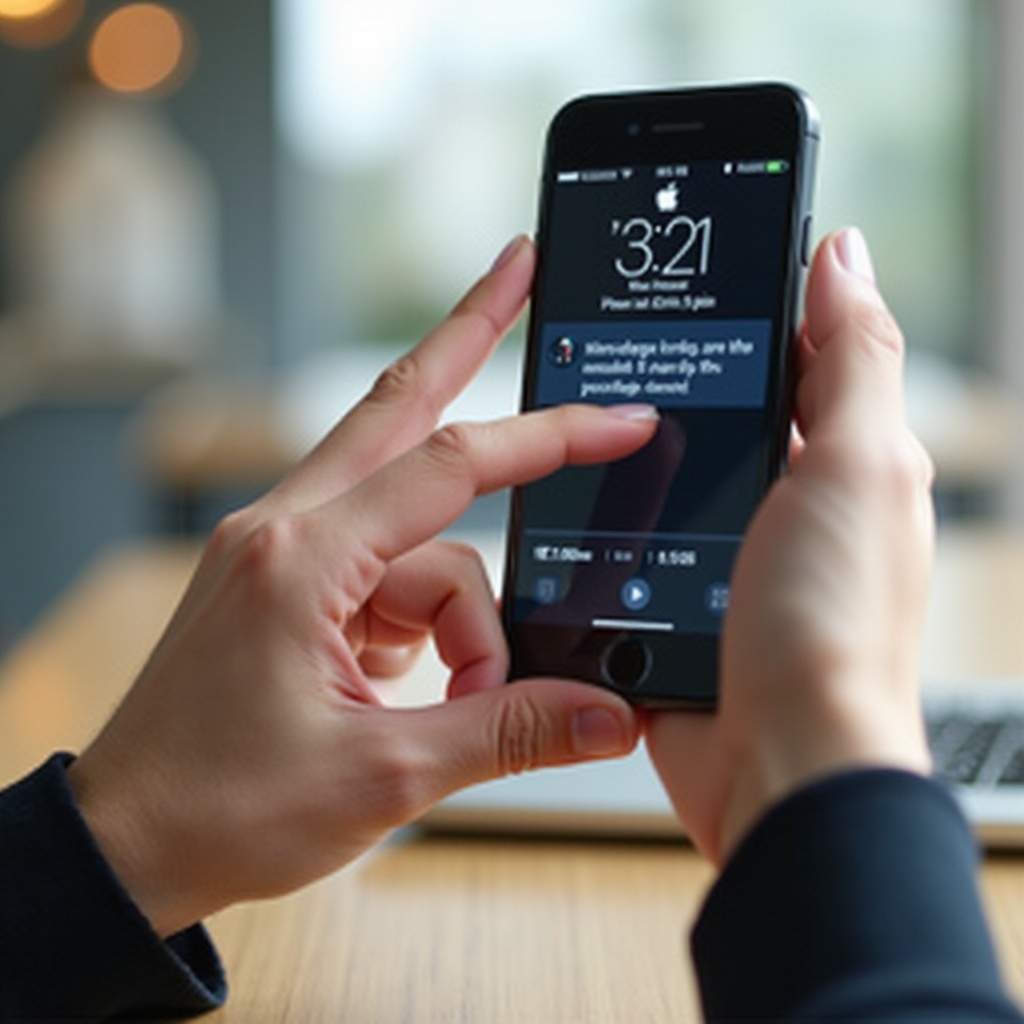
Understanding iPhone Notifications
To manage notifications efficiently, it’s crucial to understand their different types. Notifications on your iPhone are designed to keep you informed about messages, updates, or events. They appear as banners, alerts, or badges.
Each serves a specific purpose:
- Banners provide quick, temporary information.
- Alerts demand your attention and action.
- Badges display the number of notifications, helping you keep track of what’s pending.
Understanding these types aids in prioritizing and responding to notifications, laying the groundwork for more efficient management.
How to Slide Off Notifications on iPhone
Once you’re familiar with the notification types, learning to dismiss them using gestures can help declutter your screen and maintain focus.
Here’s how:
- Swipe Left on the Notification: This reveals options like Clear, View, or Manage.
- Tap ‘Clear’: Instantly removes the notification from your screen.
- Use ‘Manage’ for More Options: Allows you to adjust future notifications from that app.
These gestures simplify your interaction with notifications, preparing you for further customization in the next section.
Creating Gifs of Notification Actions
Recording and sharing your screen actions as gifs can be both fun and educational. It helps in sharing tips or capturing memorable interactions on your iPhone.
Here’s how to create gifs:
- Enable Screen Recording: Navigate to Settings > Control Center > Customize Controls and add Screen Recording.
- Record Your Action: Pull down from the upper-right corner (iPhone X and newer) or up from the bottom (iPhone 8 and earlier) and tap the Record button.
- Stop Recording: Tap the red bar at the top of the screen and select Stop Recording.
- Create a Gif: Use apps like Giphy or ImgPlay to convert your screen recording into a gif.
Gifs make demonstrating processes or sharing highlights more engaging, integrating smoothly into your communication methods.
Customizing Notification Settings for Efficiency
Customization ensures notifications work for your unique needs, improving productivity without sacrificing important updates.
Here’s how you can tailor notifications:
- Adjust App Settings: Navigate to Settings > Notifications, choose the app, and customize alert style, sound, and badge settings.
- Set Notification Grouping: Choose from Automatic or By App in Notifications, organizing alerts to reduce clutter.
- Utilize Visual Customization: Differentiate urgent matters from routine updates visually.
With customization, notifications become a tool for streamlining tasks, leading seamlessly into more advanced strategies.
Advanced iPhone Notification Tips
For advanced management, deeper customization strengthens control over your notification interactions, balancing information flow and serenity.
Consider these strategies:
- Focus Modes: Use Focus in Settings to create customized profiles for different activities, filtering notifications effectively.
- Do Not Disturb: Activate to silence alerts during specific times, like meetings.
- Manage App-specific Notifications: Limit interruptions by prioritizing alerts from important apps.
These advanced techniques ensure you stay informed while preserving tranquility, maximizing your productivity.
Conclusion
Mastering notifications on your iPhone involves understanding their types, harnessing gestures, and creating gifs for improved communication. Customizing your settings and applying advanced techniques ensures your iPhone supports your daily goals. Implement these strategies for a balanced digital experience, enhancing both productivity and peace of mind.
Frequently Asked Questions
Why are my notifications not sliding off easily on iPhone?
Ensure you are using the correct gesture by swiping left and selecting ‘Clear’. Restart your device if you experience persistent issues.
Can I create gifs directly on my iPhone without third-party apps?
Yes, you can use the Shortcuts app to convert videos into gifs, although third-party apps may offer more features.
How do I stop receiving unwanted notifications on my iPhone?
Go to Settings > Notifications to adjust or disable notifications for specific apps. Use Do Not Disturb to silence all alerts during set periods.