
Introduction
Connecting Beats headphones to your phone delivers a superior audio experience, making your favorite tunes and calls more immersive than ever. Whether you’re connecting to an iPhone or an Android device, understanding the process ensures seamless audio output without interruptions. This guide provides practical steps and tips to help you connect your Beats headphones easily, allowing you to focus on enjoying your music rather than troubleshooting connectivity issues.
Understanding Beats Headphones and Phone Compatibility
Before proceeding with the connection, it is essential to understand your Beats headphones model and phone compatibility. Beats offer various options, from wireless models like the Studio3 to wired options such as the EP. Each model requires a slightly different approach.
-
Overview of Beats Models: The majority of Beats headphones utilize Bluetooth technology for wireless connectivity. However, models such as the Beats EP require a direct cable connection. Knowing your specific model helps you choose the correct method for pairing.
-
Phone Compatibility and Bluetooth Versions: Modern smartphones often have Bluetooth features compatible with Beats headphones. It’s important to ensure that your smartphone’s Bluetooth is enabled and up-to-date, offering seamless communication with your headphones.
With compatibility squared away, let’s explore how to pair Beats headphones with an iPhone smoothly.
Connecting Beats to an iPhone
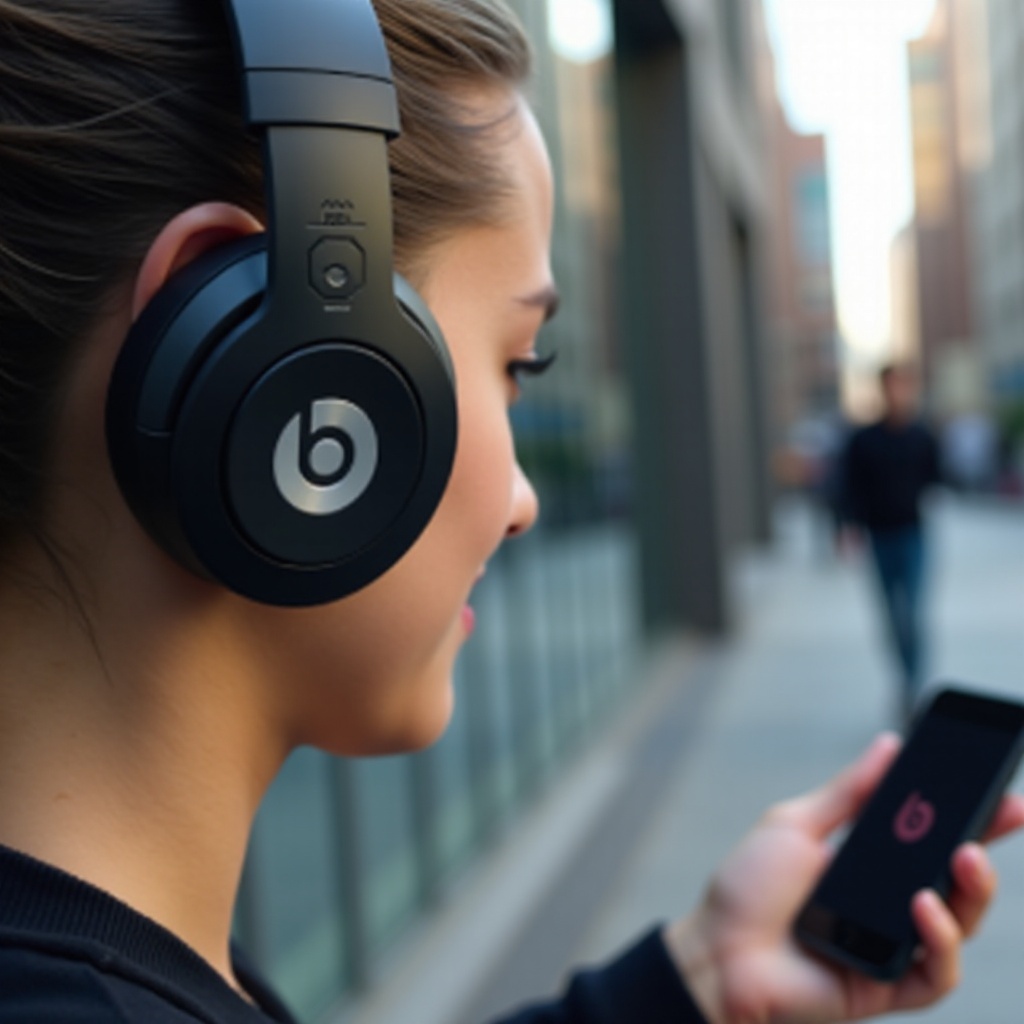
Pairing Beats headphones with an iPhone is a user-friendly process, thanks to Apple’s intuitive system design. Apple devices have optimized Bluetooth settings that facilitate hassle-free connections.
- Step-by-Step Guide for Wireless Connection:
- Power on your Beats headphones and activate pairing mode, indicated by a blinking LED light.
- Navigate to the Settings app on your iPhone.
- Tap Bluetooth and ensure it is turned on. Your iPhone scans for available devices.
-
Locate your Beats headphones in the list and select them to pair. When connected, the LED light stabilizes.
-
Troubleshooting Common iPhone Connection Issues:
- Ensure your headphones are sufficiently charged.
- Reboot your iPhone if initial pairing attempts fail.
- If necessary, ‘Forget’ the device within Bluetooth settings and try pairing afresh.
Successfully connecting your Beats to an iPhone is seamless. Next, we’ll discuss connecting with Android devices, which might require different techniques.
Connecting Beats to an Android Phone
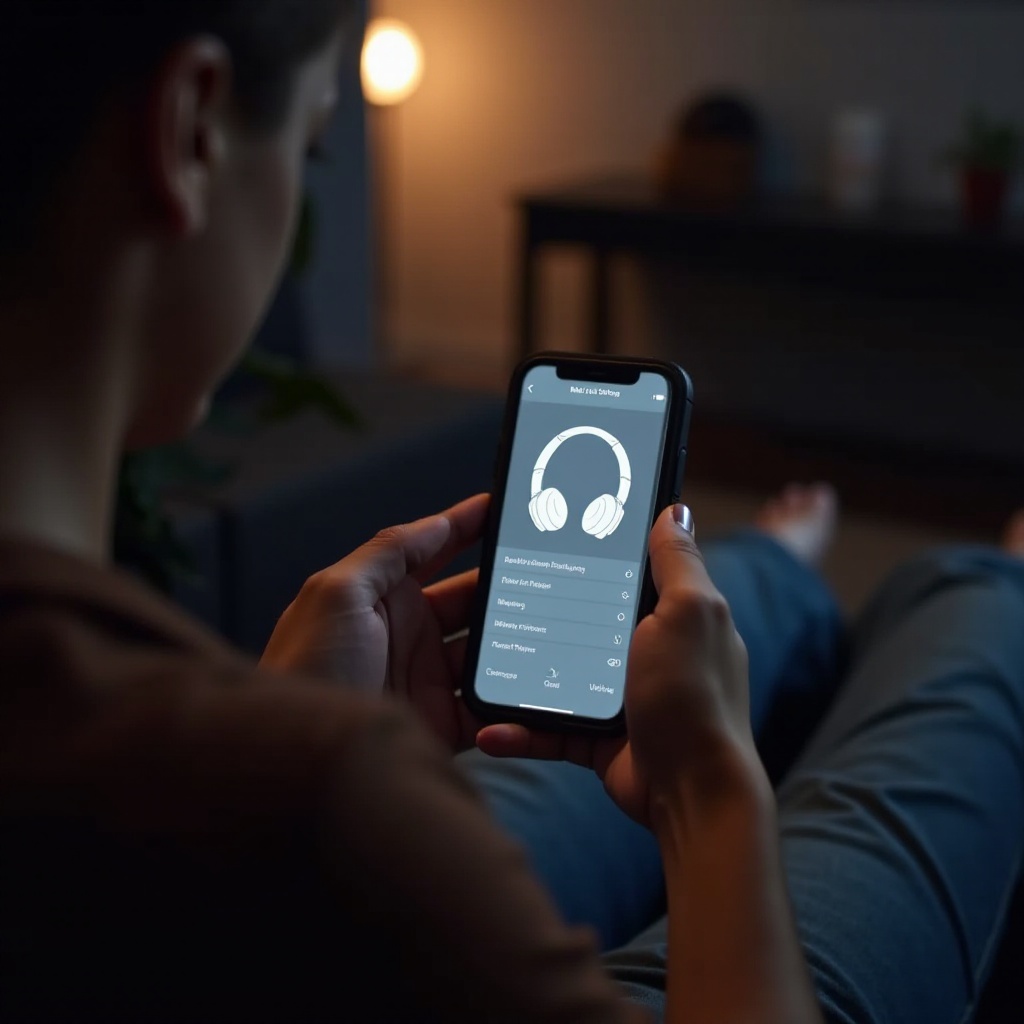
The diverse landscape of Android phones means the pairing process may vary slightly, but the approach remains accessible.
- Step-by-Step Guide for Wireless Connection:
- Engage pairing mode on your Beats headphones by holding the power button until the LED begins flashing.
- Open your phone’s Settings, then ‘Connections’ or ‘Network & Internet.
- Make sure Bluetooth is activated.
-
Tap ‘Pair new device’ to locate your Beats headphones within the list. Press to connect.
-
Alternative Connection Methods for Android:
- NFC Pairing: Enable NFC on your phone if supported and position it near your headphones. Follow the prompts displayed on the screen.
-
Wired Connection: Use a 3.5mm cable jack for an immediate link if Bluetooth isn’t available.
-
Troubleshooting Common Android Connection Issues:
- Restart your Android phone to refresh system settings.
- Clear the Bluetooth cache and reset your headphones.
- Check for firmware upgrades to optimize device performance.
Following successful pairing with your device, we’ll look at maximizing performance to ensure the best connectivity.
Additional Tips for Optimal Performance
Refining your setup ensures that your Beats headphones deliver uninterrupted, pristine sound quality.
-
Improving Bluetooth Connectivity: Maintain proximity between devices as interference can disrupt signals. Remove obstructions around your listening space.
-
Maintaining Battery Life: Charge your headphones consistently, avoiding prolonged charging sessions to extend battery lifespan. Consider using low-power settings on your phone.
Once your headphones are performing at their best, let’s explore additional features that can significantly enhance your listening experience.
Unlocking Extra Features of Beats Headphones
Beats headphones come packed with features that complement your audio experience beyond simple connectivity.
-
Integrating Voice Assistants: Many Beats models sync seamlessly with voice assistants like Siri, allowing for hands-free controls and interactivity. Initiate Siri through your iPhone or via onboard controls for a comprehensive hands-free experience.
-
Customizing Audio Settings on Your Phone: Tailor the sound profile within your phone settings for personalized audio. Use apps designed for audio customization to refine the experience further.
These functionalities not only improve enjoyment but also expand the utility your Beats headphones offer daily.
Conclusion
Connecting your Beats headphones to your phone is a straightforward, rewarding task when following the right steps. Whether using iOS or Android, each platform offers tailored features that enhance connectivity. Armed with this guide, you’re now equipped to handle potential sound pitfalls and leverage the rich features Beats headphones offer, for an elite auditory experience.
Frequently Asked Questions
How do I reset my Beats headphones if they won’t connect?
Press and hold the power button and the volume down button simultaneously until the LED indicator flashes, indicating a reset.
Can I connect Beats to multiple devices at once?
Beats headphones typically pair with one device at a time. Disconnect from the current device and pair with another to switch connections.
What should I do if my Beats keep disconnecting?
Ensure there are no obstructions or interference, keep your phone close, and check for firmware updates to ensure optimal performance.