
Introduction
Casting from your phone to a Firestick can greatly enhance your viewing experience by allowing you to stream directly from your mobile device to your TV. This guide provides a step-by-step approach to casting from both Android and iOS devices, ensuring a seamless connection. We will also cover common issues and their solutions to make the process as smooth as possible.
Understanding Your Firestick and Phone Compatibility
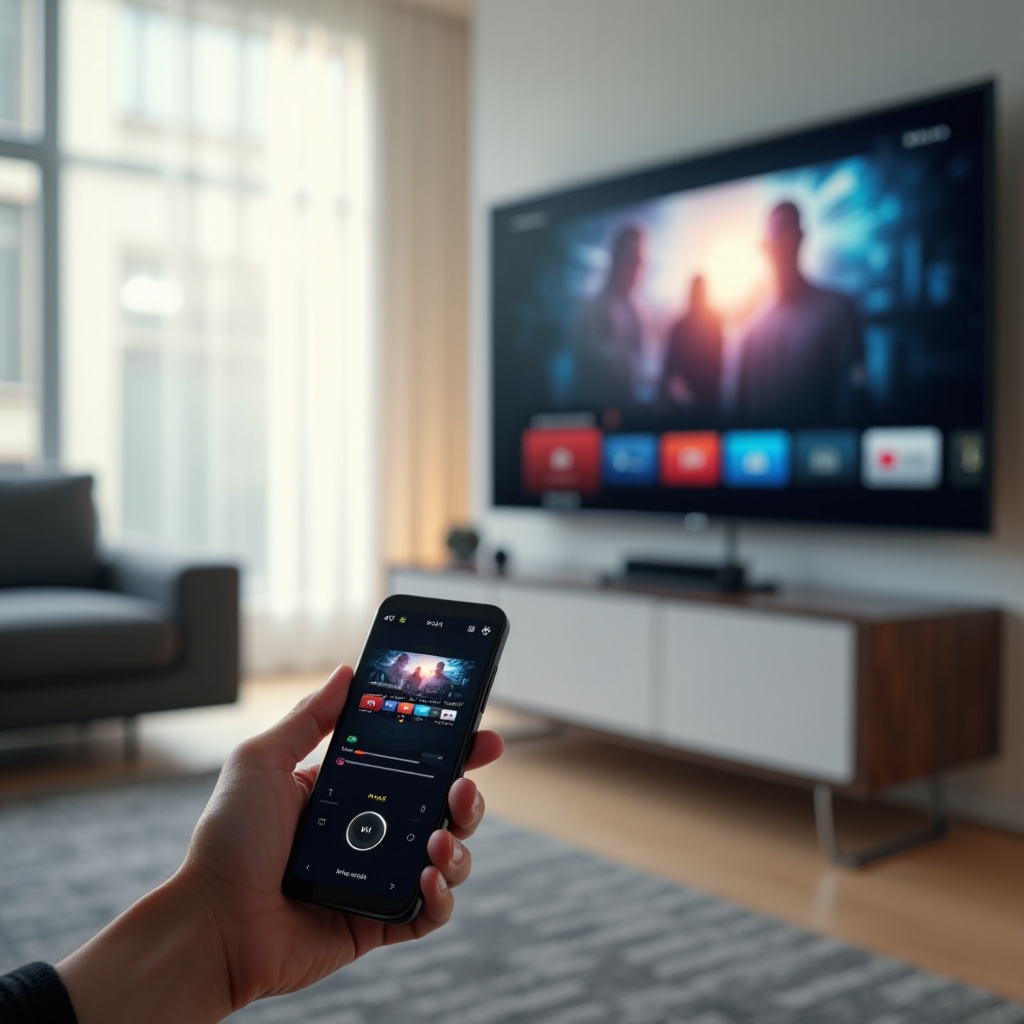
Before you start, it’s important to verify that your devices are compatible. The Amazon Firestick connects to your TV via an HDMI port and supports a wide range of Android and iOS devices. While Android typically offers native casting features, iPhone users may need to use third-party applications. Ensure both your Firestick and smartphone are updated to the latest software version to avoid compatibility issues.
With compatibility in check, let’s move on to setting up your devices for casting.
Setting Up Your Devices for Casting
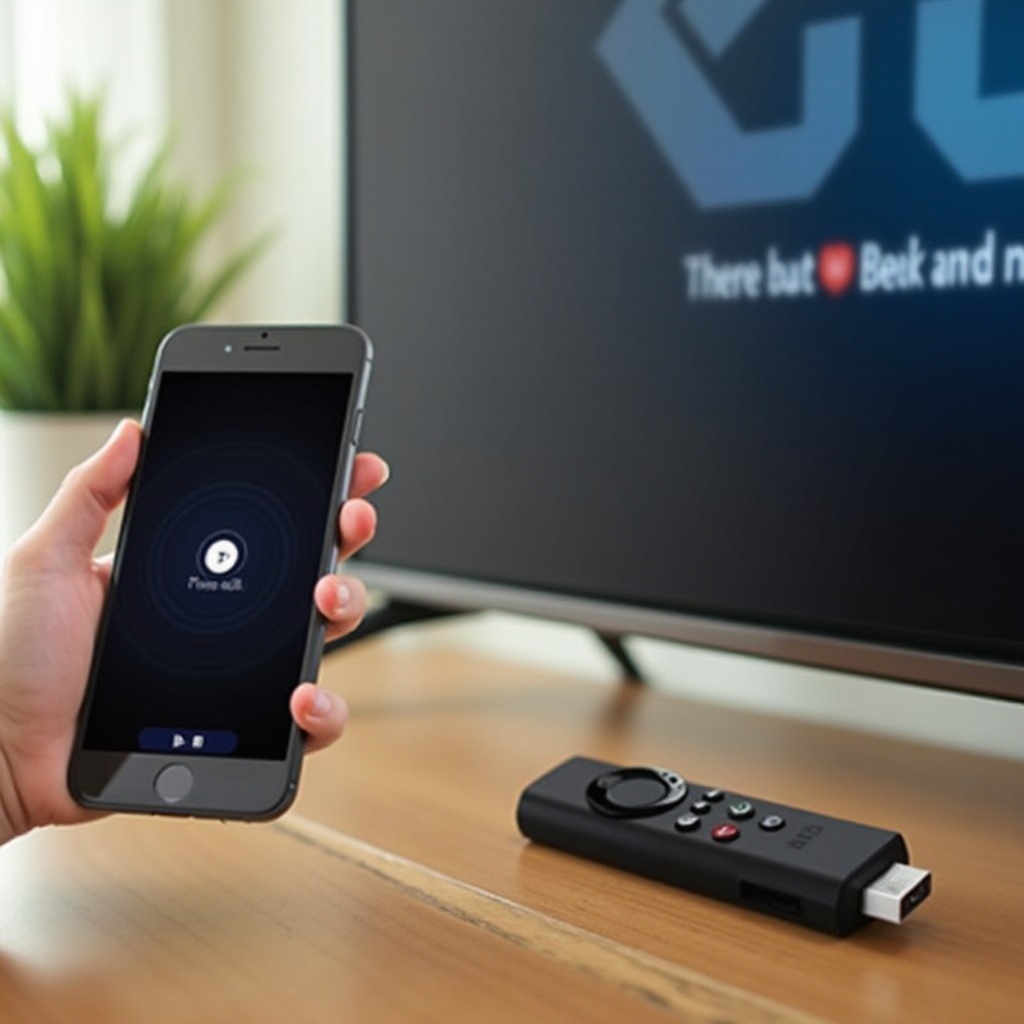
Proper setup is crucial for flawless casting. Here’s how you can prepare your devices:
- Prepare Your Firestick:
- Insert the Firestick into the HDMI port on your TV.
- Connect it to power using the provided USB adapter.
- Switch your TV’s input to the correct HDMI channel.
-
Follow the on-screen instructions to join a Wi-Fi network.
-
Ensure Same Network Connection:
- Confirm that your phone and Firestick are logged into the same Wi-Fi network. This is imperative for a successful connection.
Having your devices ready, let’s start with casting using an Android device.
How to Cast from an Android Phone to Firestick
Casting from an Android phone is straightforward due to the native casting feature. Use these steps:
- Enable Casting on Your Phone:
- Swipe down the top of your screen to open the Quick Settings menu.
-
Tap the ‘Cast’ option, prompting your phone to search for available devices.
-
Connect to Your Firestick:
- Select your Firestick from the list.
-
Approve any permission prompts on both your smartphone and TV.
-
Stream Your Media:
- Launch any media app on your phone and start streaming. The content will display on your TV seamlessly.
For iPhone users, the process differs slightly as it involves third-party apps.
How to Cast from an iPhone to Firestick
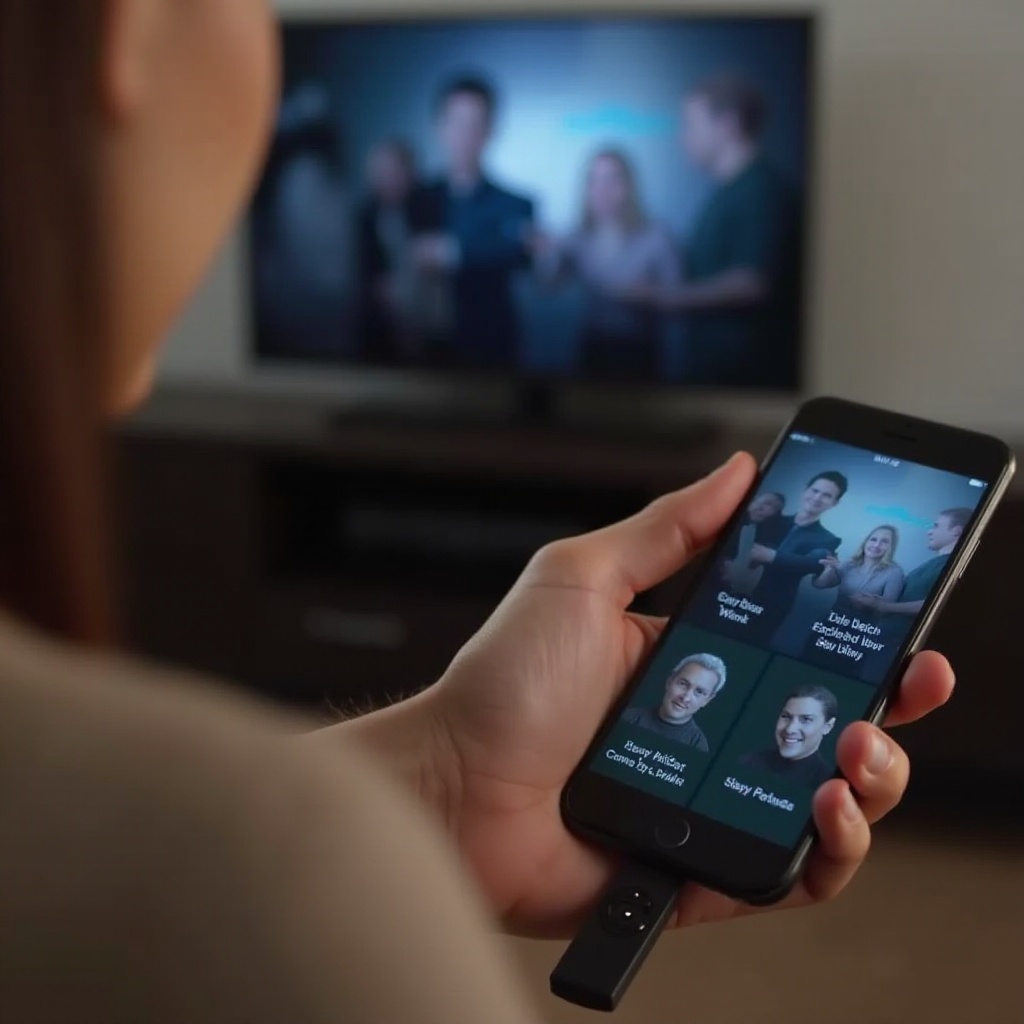
Since Apple’s ecosystem does not natively support casting to Firestick, you need a workaround using apps. Follow these steps:
- Install a Third-Party App:
-
Download a casting app such as AirScreen or Video & TV Cast onto your Firestick. These are available on the Amazon Appstore.
-
Connect Your iPhone:
- Open your selected app on the Firestick and follow any initial setup prompts.
- On your iPhone, bring up Control Center and press ‘Screen Mirroring.
-
Choose your Firestick from the list prompted.
-
Begin Streaming:
- Select a media file on your iPhone, and it will be mirrored on the TV screen connected to your Firestick.
Even with correct setups, you might encounter issues that hinder your experience. Let’s explore how to troubleshoot these issues effectively.
Troubleshooting Common Casting Issues
It’s not uncommon to face stumbling blocks during the casting process. Here are some problem-solving tips:
- Connection Problems:
- Double-check that both devices are on the same Wi-Fi network.
-
Restart both devices and your router if issues persist.
-
Streaming Lags or Buffering:
- Test your internet speed; consider reducing other internet activities to free up bandwidth.
-
Position yourself closer to your Wi-Fi router.
-
Audio/Video Sync Issues:
- Adjust synchronization settings in your app or Firestick settings as necessary.
- Retrying casting after a short disconnection often helps sync the media files correctly.
Implementing these strategies typically resolves most casting glitches. Let’s wrap up with some tips to refine your casting experience.
Tips for an Enhanced Casting Experience
- Optimize Network Performance:
-
Prefer a 5GHz Wi-Fi network for less interference and higher speeds over the traditional 2.4GHz.
-
Keep Devices Updated:
-
Regular updates for both your phone and Firestick keep them aligned with technological improvements, ensuring minimal disruptions.
-
Dive Into App Features:
- Explore apps for features that enhance viewing, such as subtitle options or playback quality customization.
These additional tips will significantly improve the reliability and quality of your casting sessions.
Conclusion
Casting from your Android or iOS device to a Firestick can significantly enhance your streaming experience by enlarging your content to a TV screen. By following these steps and troubleshooting tips, you can ensure a smooth and enjoyable viewing process. Always ensure both your phone and Firestick are updated and connected correctly to avoid any hiccups.
Frequently Asked Questions
Can I cast to Firestick without Wi-Fi?
No, a stable Wi-Fi network is required to connect your phone and Firestick.
Why is there a delay when casting video from my phone?
Network latency often causes this delay. Check your Wi-Fi strength and minimize simultaneous device usage.
Do I need any special apps to cast from an iPhone?
Yes, third-party apps such as AirScreen or Video & TV Cast are necessary for iPhone casting to Firestick.