
Introduction
Apple’s ecosystem is renowned for its sleek functionality, including the way apps are updated. Keeping apps current enhances performance and security. As iPhones proliferate, users often ask, ‘Does Apple automatically update apps?’ Understanding this feature will help users optimize their phone experience and maintain app efficiency without much hassle.
Automatic app updates are a convenient default setting on iPhones, ensuring applications you’re using are the latest versions available. This process can be tailored to meet individual preferences, allowing users control without sacrificing convenience.
The Automatic Update Process on iPhones
iOS streamlines automatic updates by managing them seamlessly in the background. Apple designed this feature to minimize user intervention by automatically refreshing apps when conditions are optimal. Generally, updates are scheduled to occur when the device has robust WiFi connectivity and adequate battery life.
Understanding how iOS handles updates can empower you to customize settings effectively. When your phone connects to WiFi, it smoothly incorporates updates, keeping your apps current and ready to deliver new features and improvements. Thus, users can enjoy seamless app experiences without any need for manual installations.
By maintaining this connectivity, users benefit from crucial security patches, which enhance overall trust and confidence in the device.
Benefits of Automatic App Updates
Automatic updates provide several advantages that make them a preferred choice among users:
-
Enhanced Security: Apps are routinely updated to fix vulnerabilities and introduce security patches. Automatic updates ensure continuous protection without requiring manual checks.
-
Access to Latest Features Without Hassle: Developers frequently add features or improve functionality. Automatic updates ensure access to the latest app versions without the hassle of manual installations.
Providing both security and feature updates seamlessly, automatic updates increase user satisfaction and ease of use. This ensures app functionality is optimized — a crucial aspect for users who demand constant digital enhancement.
Drawbacks of Automatic Updates
Despite the convenience, automatic updates come with some drawbacks:
-
Unexpected Data Usage: Updates can consume mobile data if WiFi isn’t available, possibly leading to higher internet charges.
-
Instances of App Incompatibility: Occasionally, newer app updates may clash with older iOS versions or other apps, creating usability challenges.
Understanding these potential disadvantages empowers users to make informed decisions about how to manage app update settings. Consequently, proactive management prevents issues and ensures optimal device performance.
Customizing Update Preferences on Your iPhone
Customizing update settings allows you greater control over when and how apps update:
-
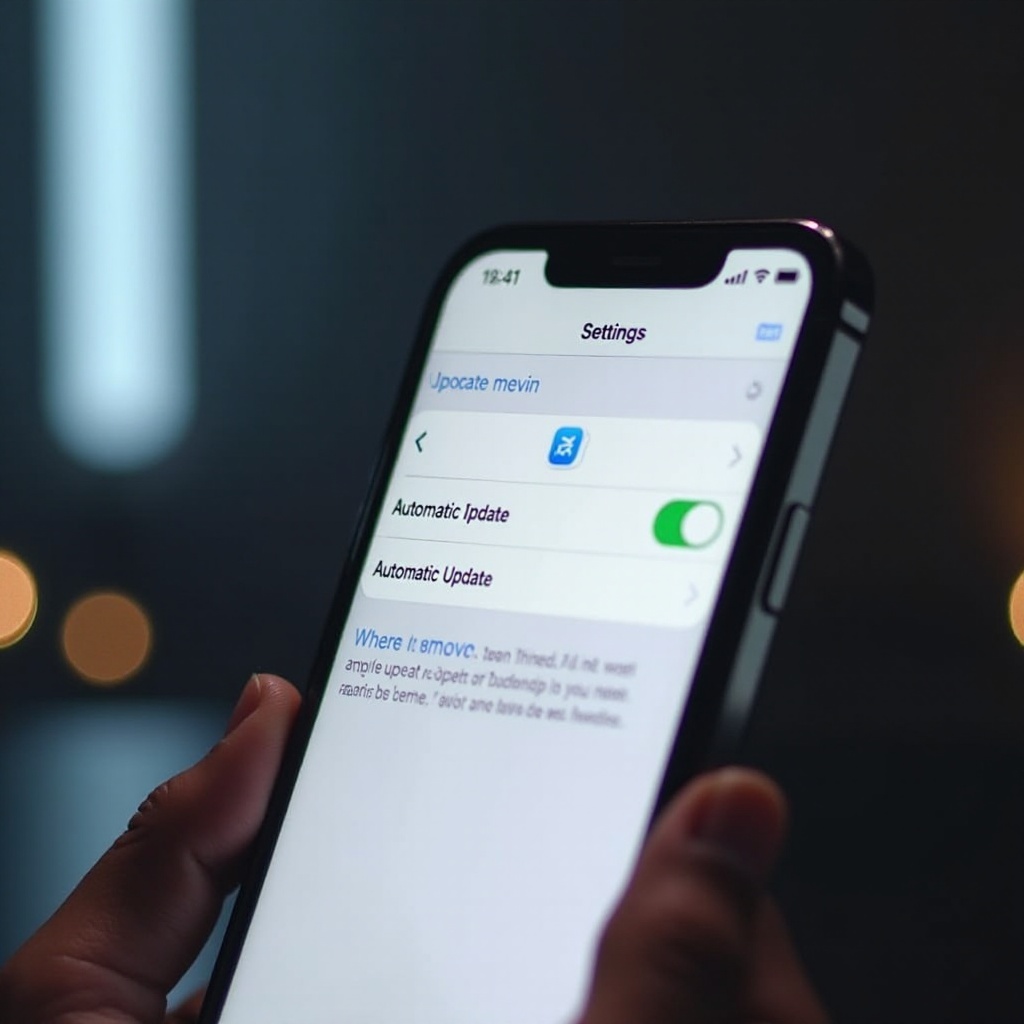
Enabling or Disabling Automatic Updates: Navigate to ‘Settings’ > ‘App Store,’ where you can toggle automatic updates.
-
Setting WiFi-Only Updates: Opt for updates only when connected to WiFi to conserve data and ensure control over data usage.
Understanding these options, users can tailor updates to their needs, balancing convenience and control. This personalized approach integrates seamlessly into the user’s lifestyle, while protecting resources and optimizing app performance.
Troubleshooting Common Update Issues
Automatic updates occasionally encounter problems needing resolution for smooth app operation:
-
Solutions to Update Failures: Check your internet connection, as poor connectivity might cause update hitches. Restart your device if updates stall.
-
Managing Updates with Limited Storage: Ensure ample space by deleting unused apps or transferring data to cloud storage. Efficient storage management improves download efficiency.
By addressing update concerns, users regain control over app management, maintaining functional continuity. Troubleshooting offers insight into pitfalls and pragmatic solutions for optimizing device efficiency.
Conclusion
Balancing convenience with control involves understanding the automatic update process. By recognizing both benefits and drawbacks, users can maximize device potential. Explore update customization to optimize app use according to personal needs.
Frequently Asked Questions
How do I know if my apps are automatically updated?
Check app versions in the App Store regularly; updates should display a recent modification date if automatic updates are functioning.
Can I select which apps update automatically?
iOS settings allow universal control, but managing updates for individual apps requires manual adjustment through App Store settings.
What should I do if an app doesn’t update automatically?
Ensure device connectivity is stable and storage space is sufficient. Restart your device and check App Store preferences for automatic updates.