
Introduction
Converting photos to PDFs on your iPhone can make document management more efficient by ensuring consistency and security. With numerous free options available, users can transform images into PDFs without incurring cost or compromising quality. This guide explores different methods, providing step-by-step instructions using your iPhone’s built-in features, third-party apps, and online tools.
Why Convert Photos to PDF on Your iPhone?
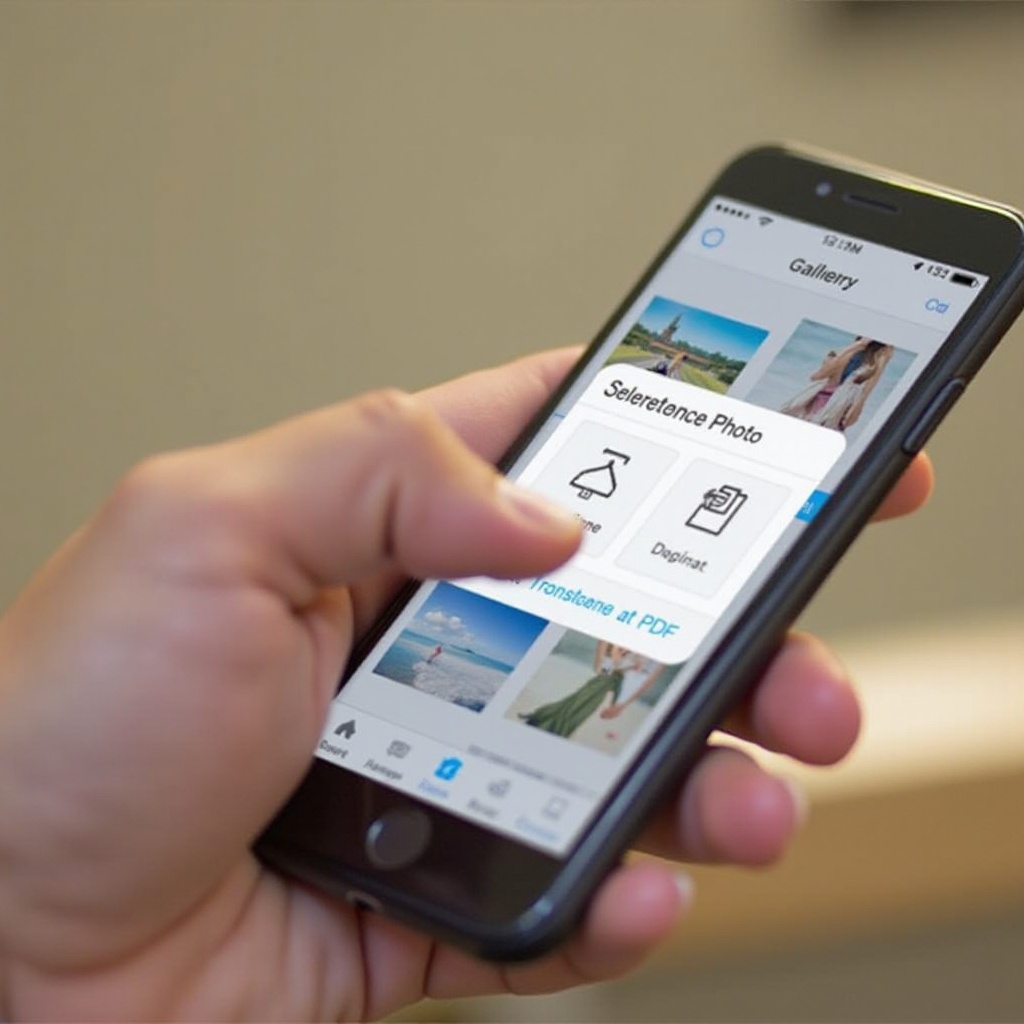
Photos are often converted into PDFs for sharing and preservation purposes. PDFs keep your images in top quality and format, making them consistent across different devices. They also secure your images, thanks to encryption capabilities that prevent unauthorized access.
Users increasingly require PDF conversion for professional and personal use. This necessity highlights the importance of knowing various ways to convert on your iPhone efficiently.
Using Built-in iOS Features
With built-in iOS features, you can convert photos to PDFs without third-party applications. These methods harness the capabilities of native apps available on your device.
- Convert Photos to PDF Using the Photos App:
- Open the ‘Photos’ app and select your images.
- Tap the ‘Share’ button and choose ‘Print’.
- Use the pinch gesture to convert the print preview into a PDF.
-
Tap ‘Share’ again to save or share your new PDF.
-
Utilize the Books App for PDF Conversion:
- In ‘Photos’, choose the photo(s) to convert.
- Tap ‘Share’ and select ‘Save to Books’.
- Your photo will appear as a PDF in the Books app, ready for sharing.
These native solutions offer quick and effective ways to convert without additional downloads.
Free Third-Party Apps for PDF Conversion
Third-party apps can offer enhanced features and support, especially when dealing with bulk or complex conversions. They often provide functionalities beyond what native apps offer.
- Adobe Scan: Features and Steps:
Adobe Scan is a powerful app for converting photos into PDFs efficiently. - Download and launch ‘Adobe Scan’ from the App Store.
- Snap a photo or select one from your gallery.
- The app enhances photo quality automatically.
-
Save or share your PDF directly through the app.
-
PDF Photos: Step-by-Step Guide:
PDF Photos offers a user-friendly conversion process. - Install ‘PDF Photos’ from the App Store.
- Select images and arrange them as needed.
- Press ‘Create PDF’ to generate your document.
- Save or distribute your PDF as desired.
These apps provide flexible options for a precise and tailored experience in document conversion.
Online Tools for iPhone PDF Conversion
If you prefer not to download apps, online tools allow PDF conversion directly through your browser.
- Top Online Converters Like PDF Candy:
Sites such as PDF Candy and Smallpdf provide efficient conversion services. - Open the site in Safari or Chrome.
- Upload your photo(s).
- Follow steps to convert and download your PDF.
Using reliable online tools can save device storage and offer efficient conversion alternatives.
- Safety and Privacy Considerations:
Always use reputable sites and check their privacy policies to ensure your data remains secure. It’s crucial to protect sensitive information when using online services.
Tips and Tricks for Efficient PDF Management
Managing your PDF files efficiently is just as important as converting them.
-
Batch Conversion Techniques:
Use apps that support batch processing if you need to convert multiple images at once. It saves time and maintains uniformity across your documents. -
Compressing PDFs Without Quality Loss:
To reduce file size, use apps or online tools designed for compression without compromising image quality. This feature becomes essential when handling or storing large PDF files.
Practical management can optimize how you handle and share PDFs.
Troubleshooting Common Conversion Issues
If you encounter conversion hurdles, the following tips might help:
- Make sure your iOS and app versions are up to date.
- For persistent issues, try switching methods or using different tools.
Adapt to solutions that fit your immediate needs to overcome conversion obstacles.
Conclusion
Converting iPhone photos to PDFs can be done smoothly with the right tools. Whether using native apps, third-party applications, or online converters, evaluate what suits your unique requirements with ease.
Frequently Asked Questions
Can I convert multiple photos to PDF at once on my iPhone?
Yes, several apps and online tools allow batch conversion of images into a single PDF.
Are there any security risks with online PDF converters?
Using reputable platforms minimizes risk. Always review privacy policies before uploading sensitive data.
What should I do if my PDF conversion fails?
Ensure your iOS and apps are updated. Consider alternative methods or consult troubleshooting guides for specific issues.