
Introduction
Understanding how to effectively connect your smartphone to Beats headphones and manage volume controls can greatly improve your audio experience. Many users choose Beats for their superior sound quality and stylish design, so knowing how to pair them correctly with your iOS or Android device allows you to maximize this audio experience.
Not only does this help in achieving comfort and personal sound preferences, but it also ensures that you are using your devices to their full potential. This guide will walk you through the connection process, volume controls, sound optimization techniques, and provide solutions to common problems.
What Are Beats Headphones?
The Evolution of Beats Technology
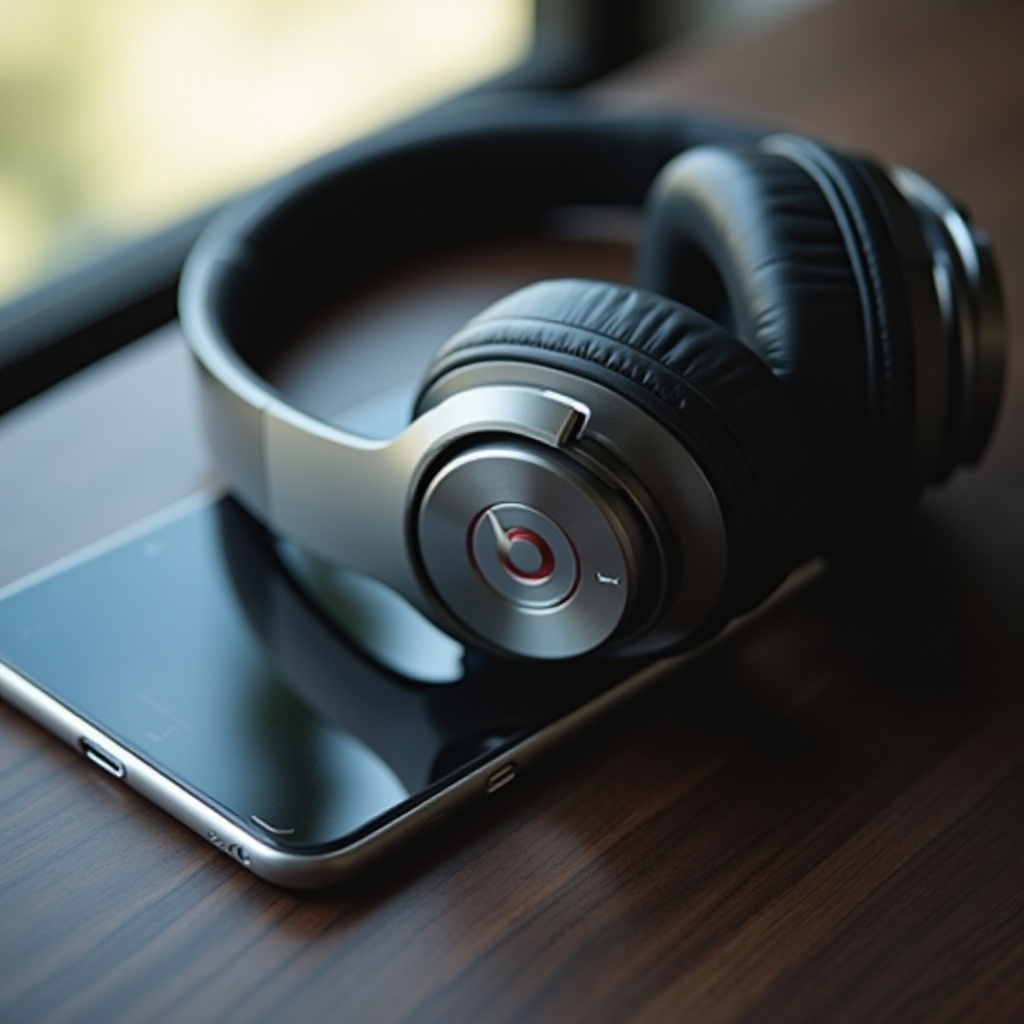
Beats headphones have established themselves as a staple in the audio industry, known for innovation combining cutting-edge technology with stylish designs. Founded by Dr. Dre and Jimmy Iovine, Beats has advanced from producing wired headphones to offering wireless options that include features like noise cancellation and robust Bluetooth capabilities.
Key Features That Make Beats Stand Out
Beats headphones are celebrated for their deep bass and high-quality sound, making them popular among audio enthusiasts. Their design is both durable and sleek, with user-friendly features that make pairing with a variety of devices, such as smartphones, seamless and efficient.
Connecting Your Phone to Beats Headphones
Creating a stable Bluetooth connection between your Beats headphones and smartphone is crucial for optimal volume control. This section provides instructions for pairing with different devices.
Steps for Pairing with iOS Devices
- Ensure your Beats headphones are fully charged and powered on.
- Go to the Bluetooth settings on your iOS device.
- Press and hold the power button on your Beats until the LED begins to flash, indicating pairing mode.
- Locate your Beats under ‘Other Devices’ and tap to connect.
- Once paired, adjust the volume directly from your iOS device.
Steps for Pairing with Android Devices
- Turn on your Beats headphones.
- Access the Bluetooth settings on your Android device.
- Hold down the power button until the LED flashes to activate pairing mode.
- Find your Beats under ‘Available Devices’ and select to connect.
- Manage the volume through your Android device once connected.
Understanding Volume Control: Phone vs. Beats
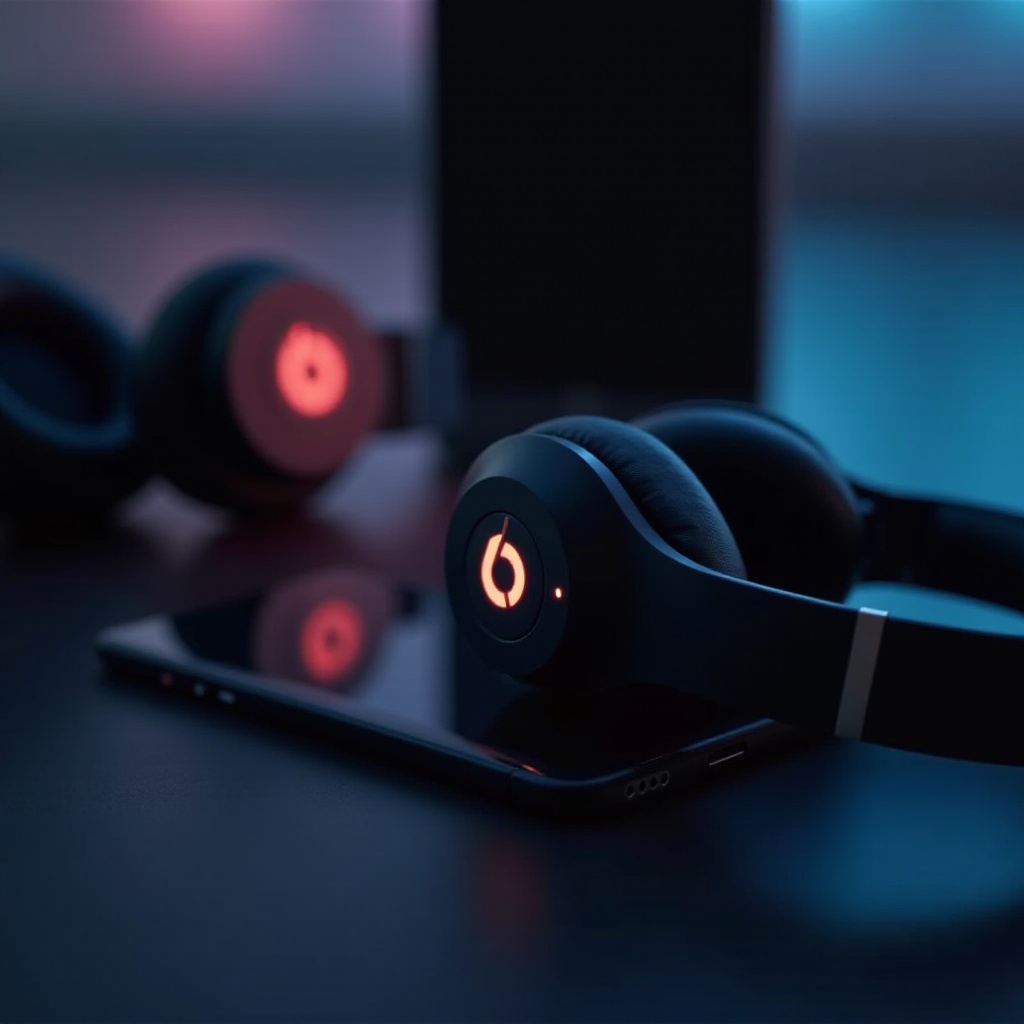
After successful pairing, understanding volume control dynamics between your phone and Beats is key to enjoying optimal audio quality. Each device functions slightly differently concerning sound settings.
How Volume Control Works Between Devices
Both the phone and Beats headphones allow you to adjust volume, which can sometimes result in confusion if they appear to function independently. However, these controls should work together, providing balance and the ideal sound level.
Adjusting Settings for Optimal Sound
Begin by setting your smartphone’s volume to a medium level. Then use your Beats to tweak the sound to your liking for various types of content, ensuring that it remains comfortable and clear without straining your ears.
Optimizing Sound Quality Between Your Phone and Beats
To make the most of your Beats headphones, explore the full potential of both the hardware and your smartphone’s capabilities. Customizing sound settings can dramatically enhance your listening experience.
Using Built-in Smartphone Features
Most smartphones, both iOS and Android, offer additional audio settings such as equalization that enhance sound production. Delve into these options to create a setting that complements your Beats. Use features like ‘Volume Limit’ on iOS or Android’s sound effects to fine-tune audio.
Best Equalizer Settings for Different Music Genres
Adjust equalizer settings based on the genre of music you’re listening to. Boost bass for genres like hip-hop, or adjust for improved treble for classical tunes. Tailoring these settings can bring your favorite music alive through your Beats headphones.
Troubleshooting Common Volume Control Issues
Despite best efforts, issues with volume control can arise. Addressing these problems quickly is necessary for maintaining a seamless audio experience.
Resolving Connectivity Issues
Ensure both the Beats and smartphone have Bluetooth turned on. If connection drops occur, try re-pairing by ‘forgetting’ the Beats in your device’s Bluetooth list and reconnecting.
Fixing Volume Mismatch Problems
If a mismatch in volume levels persists, reset both devices. Look for system updates on your smartphone, as these can include fixes for existing Bluetooth issues, thus improving overall performance.
Conclusion
Setting up your smartphone to work with Beats headphones involves more than simple pairing; it’s about unlocking an audio experience that fits your preferences. With this guide, you can achieve consistent, high-quality sound that heightens your music enjoyment, anywhere you go.
Frequently Asked Questions
Why won’t my phone connect to my Beats headphones?
Ensure both devices are in pairing mode with Bluetooth enabled. Try restarting your phone and attempt pairing again, or consult support resources if issues persist.
How can I adjust the volume control between my phone and Beats?
Utilize the volume controls on your phone and Beats to manage sound levels. Start with your phone’s volume at a medium level, then adjust on the Beats for preference.
What should I do if the sound quality is not optimal?
Remove any physical obstructions affecting Bluetooth, adjust equalizer settings on your phone, and ensure your phone’s software is up to date for optimal sound performance.