
Introduction
Apple’s AirTag revolutionizes item tracking, making it simpler than ever to locate lost belongings. Whether it’s your keys, purse, or backpack, AirTags provide a reliable solution. To make the most of this technology, it’s essential to connect your AirTag to your phone efficiently. Here’s a comprehensive guide to help you with the setup process.
What is an AirTag?
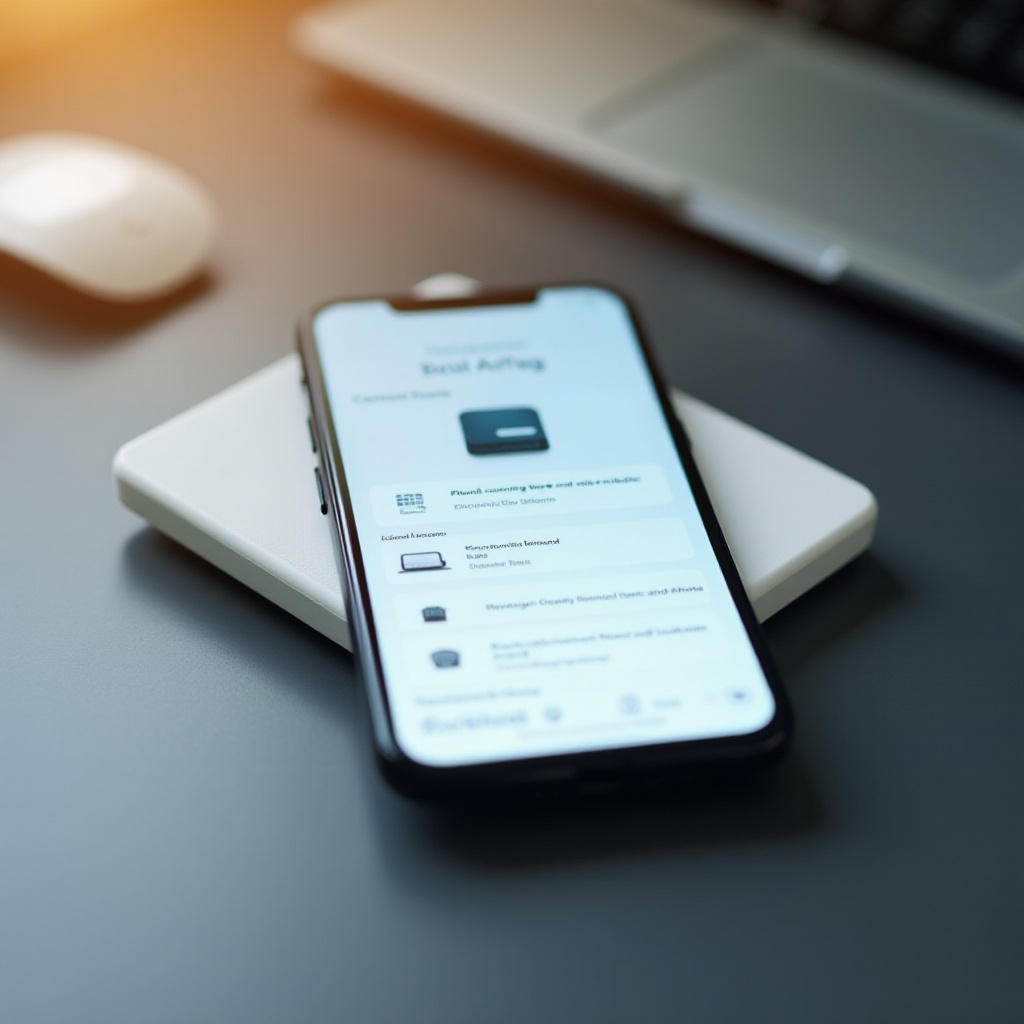
Before diving into the connection steps, understanding what an AirTag is will be beneficial. AirTags are compact devices designed to attach to personal items for tracking. They integrate seamlessly with the Apple ecosystem, especially leveraging the ‘Find My’ network for accurate location data. Equipped with Bluetooth, these devices communicate with your phone, offering real-time updates on the tagged item’s whereabouts. Having grasped what an AirTag entails prepares you for the setup process.
Preparing Your Phone for AirTag Connection
Preparation is key to ensuring a smooth connection between your AirTag and phone. Here’s how to set the stage:
- Compatible Devices: Confirm that your iPhone is compatible with AirTags, requiring iOS 14.5 or newer.
- Update Software: Keep your iPhone updated to the latest iOS version to avoid technical issues.
- Enable Location Services: Ensure location services are active for the Find My app to tap into AirTag functionalities.
Having prepped your device, you’re well-equipped to initiate the connection process.
Step-by-Step Guide to Connect AirTag to Your Phone
Connecting an AirTag to your phone is straightforward when you follow these steps:
- Activate the AirTag: Pull the plastic tab on the AirTag to complete activation.
- Open Find My App: Start by opening the Find My app on your iPhone.
- Initiate Connection: Place the AirTag near your iPhone. The phone will detect it and prompt you to connect.
- Follow Instructions: Proceed with the onscreen instructions to finalize setup.
- Connection Troubleshooting: If difficulties occur, restart your iPhone or ensure Bluetooth is active.
With AirTag connected, let’s move forward to customizing its settings for personalized usage.
Customizing Your AirTag Settings
Personalization transforms how effectively you can employ your AirTag. Here are ways to tailor settings:
- Rename the AirTag: Assign each AirTag a unique name like ‘Keys’ or ‘Luggage’ for easier identification.
- Add an Emoji: Choose an emoji to symbolize your AirTag visually within the app.
- Notifications: Activate alerts to receive reminders if an item is left behind.
Customization completed, we leap into advanced methods to utilize AirTags effectively.
Using AirTag Effectively
To maximize AirTag’s abilities, consider these tips:
- Effective Tracking: Attach AirTags to items prone to misplacement, such as keys or wallets.
- Precision Finding: Utilize precision finding to access accurate directions and distances to your item.
These strategies ensure your AirTag works optimally and segway into exploring advanced features.
Advanced AirTag Features
AirTags offer intriguing advanced features beyond mere tracking capabilities:
- Privacy and Security: AirTags use encryption to protect your location data, prioritizing user privacy.
- Additional Feature Exploration: Delve into Lost Mode options, allowing you to mark items as lost and set up messages for contact by finders.
These advanced functionalities enhance the benefits of AirTag technology.
Conclusion
The process of connecting your AirTag to a phone is both accessible and rewarding, providing assurance when items are misplaced. Remember to personalize your AirTag settings and explore beyond basic functionalities for an enriched user experience. This guide empowers you to navigate setup effortlessly, ensuring you harness the full scope of AirTag’s innovations.
Frequently Asked Questions
How do I reset my AirTag if it’s not connecting?
If you encounter connectivity issues, reset your AirTag by removing and reinserting the battery. Then, attempt reconnecting it with your phone.
Can I connect multiple AirTags to my phone?
Yes, you can connect multiple AirTags to one phone using the Find My app. Each AirTag can be customized individually.
Is the AirTag compatible with Android devices?
AirTags are primarily designed for use with Apple devices and are not directly compatible with Android devices. However, Android users can use compatible apps for limited functionality.