
Introduction
A big Android phone can feel great for watching videos, but it can be painful when you try to type with one hand. Your thumb stretches, mistypes increase, and long chats start to feel like a workout. That is where an Android small keyboard setup makes a real difference.
By shrinking and repositioning the keyboard, you can reach every key with less effort. Many users do not realize that Android already includes several small keyboard options, and that popular apps like Gboard, Samsung Keyboard, and SwiftKey all support one-handed and floating layouts.
This guide walks you through everything you need to know about setting up, customizing, and fixing an Android small keyboard. You will see how to adjust size, choose the right app, improve comfort, and avoid common problems, so typing on a big screen feels natural again.
What ‘Android Small Keyboard’ Really Means
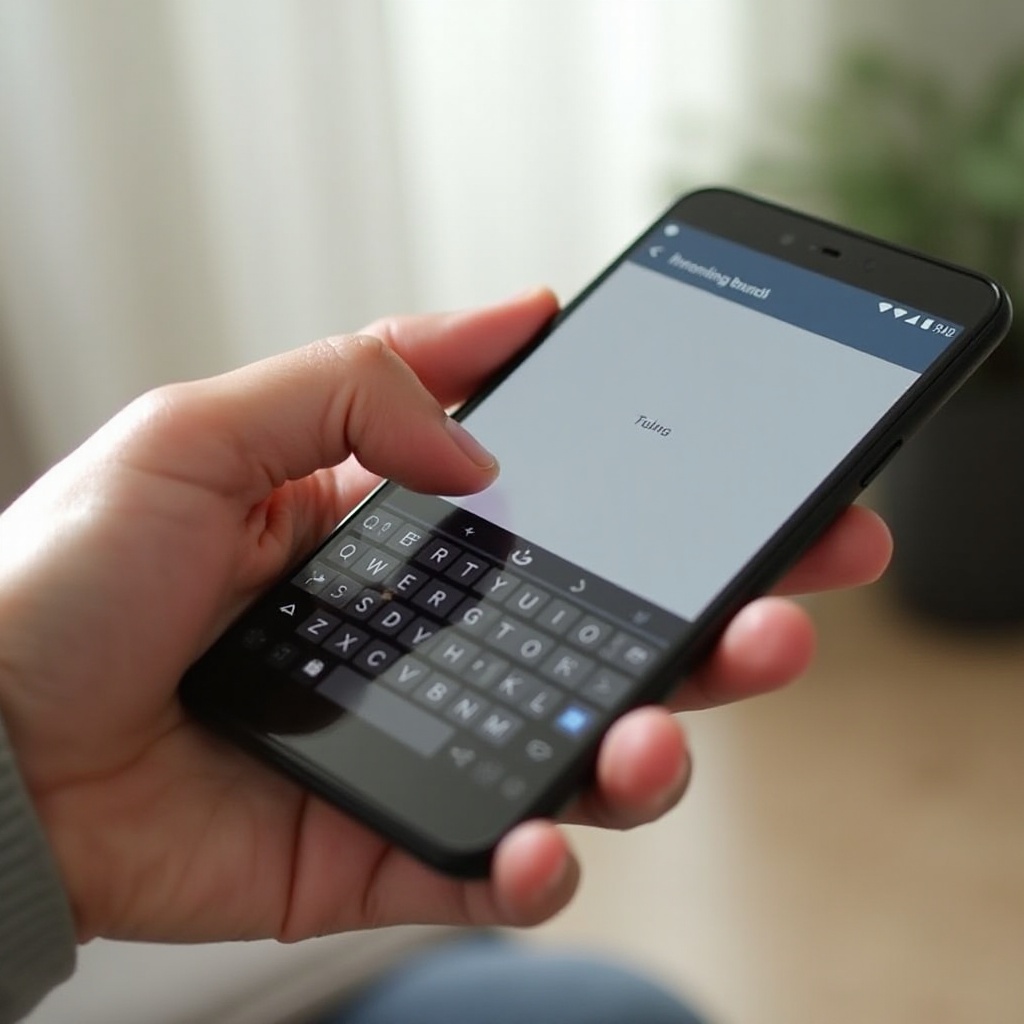
When people search for an ‘android small keyboard’, they usually want more than just a smaller version of the same layout. Size is important, but it is only one part of the experience. The way the keyboard fits your hand, where it sits on the screen, and how it reacts to your touch all play a role.
Android gives you several ways to make the keyboard smaller without losing core functions. You can shrink its height, move it to one side, float it around, or switch to a compact layout. The best option depends on your hand size, phone size, and typing style.
Size vs Layout vs Mode: Key Differences
There are three main ideas behind a small keyboard setup:
- Size: This is the height and width of the keyboard. You can change it to make keys bigger or smaller.
- Layout: This covers how keys are arranged. For example, you can enable a number row or use a compact layout that hides extra keys.
- Mode: This means the way the keyboard appears, such as full-width, one-handed (pinned to the left or right), or floating.
Understanding these differences helps you adjust your Android small keyboard without breaking its usability.
Why So Many Users Want a Smaller Keyboard on Big Phones
Modern Android phones keep getting taller and wider. That extra space is nice for media and games, but it pushes the keyboard and keys farther from your thumb. Many users:
- Struggle to reach the far side of the keyboard.
- Drop their phone while stretching their hand.
- Type slower because they have to adjust their grip.
A smaller keyboard placed closer to your thumb reduces all of these issues. It can make typing one-handed safer, faster, and more comfortable, especially on large devices.
Once you understand what a small keyboard can do for you, it makes sense to check which options are already built into your current phone before you install anything new.
Built-In Small Keyboard Options on Popular Android Phones
Before you install a new app, check what your phone already offers. Most Android phones come with at least one keyboard that supports small or one-handed modes. You often get what you need with a few quick setting changes.
These built-in options integrate well with the system, use fewer resources, and usually respect system-level privacy settings. They are a good starting point if you want a small keyboard without installing extra apps.
Google Pixel and Stock Android: Gboard as the Default
On Google Pixel and many stock or near-stock Android phones, Gboard is the default keyboard. It already supports:
- Adjustable keyboard height.
- One-handed mode, left or right.
- Floating keyboard you can drag anywhere.
You can open Gboard settings by tapping the gear icon on the keyboard or by going to Settings > System > Languages & input > On-screen keyboard > Gboard. From there, you can change size and layout without adding any other app.
Samsung Galaxy Phones: Samsung Keyboard and Gboard
Samsung Galaxy phones ship with Samsung Keyboard, and many users also install Gboard. Both support small keyboard modes:
- Samsung Keyboard has size controls and one-handed mode.
- One UI system settings also offer one-handed features that work alongside the keyboard.
- Gboard works the same way as on Pixel devices, but with some Samsung-specific tweaks.
This gives Galaxy users two strong options for an Android small keyboard without leaving the built-in ecosystem.
Other Brands (OnePlus, Motorola, etc.) and Their Default Keyboards
Phones from OnePlus, Motorola, Xiaomi, and others often also ship with Gboard or a lightly customized version. These keyboards usually include:
- Height adjustment.
- One-handed mode.
- Some floating or compact layout features.
If your phone uses a custom keyboard and it lacks small keyboard options, you can install Gboard or another popular app from the Play Store and set it as default.
Built-in tools already take you quite far, but the most detailed controls live inside the keyboard app itself. Gboard is a prime example, so it is worth digging into its settings next.
How to Make Gboard Smaller on Any Android Phone
Gboard is one of the most common Android keyboards, and it offers powerful tools for creating a small, comfortable layout. Whether you use a Google Pixel, a Samsung Galaxy, or another brand, the steps are similar.
The goal is to adjust height for a compact feel, enable one-handed mode when needed, and use the floating keyboard for maximum flexibility.
Changing Keyboard Height for a Compact Layout
To make Gboard smaller by changing its height:
- Open any app that lets you type, such as Messages or Gmail.
- Tap into a text field to bring up the keyboard.
- Tap the gear icon or the three-dot menu, then choose Settings.
- Go to Preferences.
- Find Keyboard height and select a lower setting, such as ‘Short’ or ‘Mid-short’.
Test the new height by typing a few messages. If keys feel too small, move one step up. If they still feel too big, try the shortest setting and see if visibility remains acceptable.
Enabling One-Handed Mode (Left or Right Side)
To set up Gboard’s one-handed mode:
- Open the keyboard in any app.
- Tap the three-dot menu on the top bar.
- Tap One-handed mode.
- Use the arrow icon to pin the keyboard to the left or right side.
One-handed mode narrows the keyboard and shifts it to one edge. This makes it easier for your thumb to reach all keys on big phones. When you want full width again, tap the expand icon to restore the standard layout.
Using the Floating Keyboard for Flexible Positioning
The floating keyboard is ideal if you want precise control:
- Open the keyboard.
- Tap the three-dot menu.
- Choose Floating.
- Drag the keyboard to the most comfortable spot on the screen.
- Use the resize handles at the edges to make it larger or smaller.
This floating Android small keyboard is especially helpful when an app’s layout puts input fields in odd positions or when you want the keyboard closer to the center of your thumb’s natural range.
If you prefer to stay inside Samsung’s ecosystem instead of using Gboard, you can still create a compact, one-handed layout using Samsung Keyboard.
How to Make Samsung Keyboard Smaller on Galaxy Phones
Samsung Keyboard also offers strong support for small keyboard setups on Galaxy devices. If you prefer the look and feel of Samsung’s software, you can create a compact layout without switching to Gboard.
The key is to adjust size, turn on one-handed mode, and switch between full and floating views as needed.
Resize and Adjust Layout in Samsung Keyboard Settings
To shrink Samsung Keyboard:
- Go to Settings > General management > Samsung Keyboard settings.
- Tap Size and transparency or Keyboard size (wording may vary).
- Drag the edges of the keyboard preview to reduce height and width.
- Tap Done to save changes.
You can also enable or disable extra rows, such as the number row, to keep the keyboard cleaner when space is tight. A slimmer layout gives your thumb less distance to travel.
Turning On One-Handed Mode in One UI
Samsung offers a system-level one-handed mode that works well with a small keyboard:
- Go to Settings > Advanced features > One-handed mode.
- Turn it on.
- Choose how to trigger it (gesture or button shortcut).
When you enable one-handed mode, the whole screen shrinks toward one corner. Together with a smaller keyboard, this makes large Galaxy devices much easier to use with one hand, especially during long chats.
Switching Between Full, Small, and Floating Keyboard Views
Samsung Keyboard lets you switch views on the fly:
- Tap the keyboard settings icon while typing.
- Choose Mode or Layout (depending on version).
- Select Standard, One-handed, or Floating.
Standard fits the full width, one-handed narrows and shifts it, and floating lets you drag the keyboard around. Try each mode and pick the one that best matches your grip and thumb reach.
Built-in keyboards cover most needs, but some users want more personalization or features. That is where dedicated third-party small keyboard apps can give you extra control.
Other Great Small Keyboard Apps for Android in 2024
If built-in options do not match your taste, third-party apps offer more styles and features. Many focus on swipe typing, customization, and lightweight performance while still supporting a small layout.
When choosing a new Android small keyboard, check its size controls, privacy policy, and performance on your device. A good keyboard should feel smooth, predictable, and easy to tweak.
Microsoft SwiftKey: One-Handed and Swipe-Friendly
Microsoft SwiftKey is popular for its prediction engine and swipe typing. For small keyboard use, it offers:
- Simple resizing: tap the three-dot menu, then Resize.
- One-handed mode options on many phones.
- Strong prediction, which helps offset the extra typos that can come with tiny keys.
SwiftKey works well if you like to glide your thumb across the keyboard rather than tap each key. Swipe typing often remains accurate even on smaller layouts, because the app uses context and gesture patterns to guess the right word.
Fleksy and Other Minimalist Keyboards
Fleksy focuses on speed and a clean look. It offers:
- Large, bold keys that remain readable even when the keyboard is smaller.
- Strong gesture support to delete, add spaces, and insert punctuation.
- Compact layouts that still feel open and uncluttered.
Other minimalist keyboards follow a similar idea: fewer visual distractions, more focus on core keys, and smart gestures to reduce thumb movement.
Lightweight and Privacy-Focused Small Keyboard Options
Some users want a small keyboard that is also light on resources and data tracking. Options like Simple Keyboard and other open-source apps focus on:
- Basic features only, so they run well on older or budget phones.
- Minimal or no internet access.
- Fewer permissions and a clear privacy stance.
They might lack advanced prediction, but if you want a small, fast, and private Android keyboard, they are worth testing.
Once you choose a keyboard app and layout, you still need to make sure that the compact design remains comfortable and accurate enough for daily typing.
Optimizing a Small Keyboard for Comfort and Accuracy
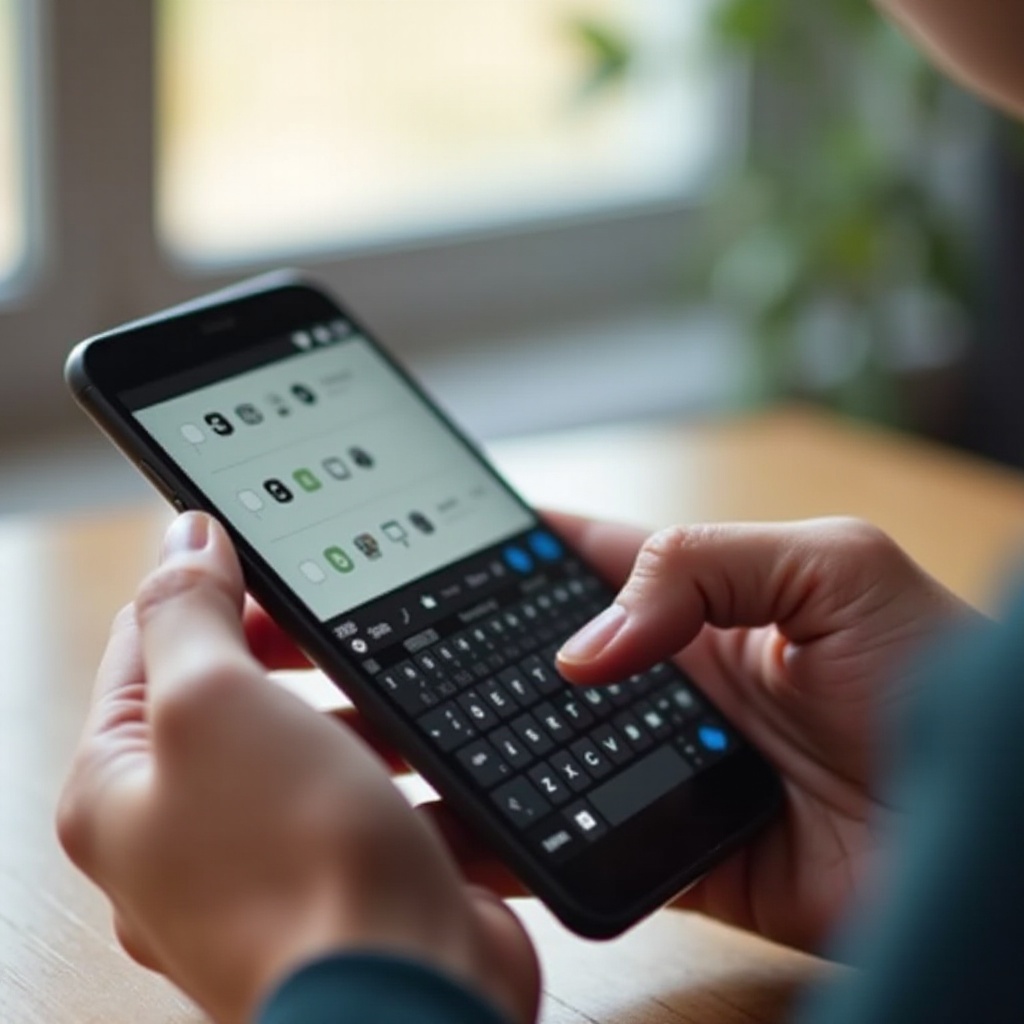
Shrinking your keyboard is not enough on its own. Once you have a small layout, you need to tune it for comfort and accuracy. Small keys can lead to more mistakes, but good visibility and feedback can offset that.
Think of this as fine-tuning your Android small keyboard so it feels natural in daily use.
Boosting Visibility: Key Borders, Font Size, and Contrast
On a small keyboard, you need clear visual cues. You can:
- Turn on key borders so each key is easy to see.
- Increase the keyboard font size where possible.
- Use a high-contrast theme, such as dark keys on a light background or the reverse.
Most keyboards, including Gboard and Samsung Keyboard, let you change themes and sometimes key outlines. These simple tweaks can cut down on mis-taps and make the keyboard easier on your eyes.
Haptic Feedback, Sound, and Key Pop-Ups for Better Feel
Feedback helps your fingers know when a touch registers. Adjust:
- Haptic feedback: a small vibration on keypress.
- Key press sound: a soft click or tone (if you like audio feedback).
- Key pop-ups: a small bubble showing the key you pressed.
You can enable these in the keyboard’s settings. Stronger, more consistent feedback lets you type confidently even on a compact layout, because you feel when each tap lands.
Shortcuts, Gestures, and Text Expansion to Reduce Thumb Travel
Smart features let you do more with less movement:
- Set up text shortcuts (for example, ‘brb’ expands to ‘be right back’).
- Use swipe gestures in Gboard or SwiftKey to delete words or move the cursor.
- Enable quick access to symbols and numbers via long-press.
These tools cut down how often you stretch your thumb across the keyboard and help you type faster on a small layout.
Even with a good setup, issues can pop up. Knowing how to fix common problems keeps your Android small keyboard reliable over time.
Common Android Small Keyboard Problems and Fixes
When you start customizing your keyboard, things can go wrong. The layout might shift, keys may disappear, or the keyboard might start lagging. Most of these issues have simple fixes.
Understanding common problems helps you keep your Android small keyboard stable and dependable.
Keyboard Too Small, Off-Center, or Covering Content
If your keyboard seems stuck in a strange position:
- Check if one-handed mode or floating mode is active.
- In Gboard, tap the three-dot menu and turn off One-handed or Floating.
- In Samsung Keyboard, go to Mode and switch back to Standard.
If the keyboard covers text fields, move a floating keyboard higher or lower, or disable floating and return to a fixed layout. You can also rotate the phone to see if landscape mode gives a better view.
Missing Keys After Resizing (Space Bar, Emoji, Number Row)
A compact layout can hide some keys:
- In Gboard, open Settings > Preferences and enable Number row or the emoji switch key.
- In Samsung Keyboard settings, check Layout and turn on the number row or emoji options.
- If symbols feel buried, adjust long-press options so you can reach them quickly.
Restoring key rows brings balance between compact size and full function, so you do not have to dig through menus for common characters.
Lag, Crashes, or Poor Autocorrect on Compact Layouts
If the keyboard behaves badly after changes:
- Update the keyboard app from Google Play.
- Clear cache in Settings > Apps > [Keyboard] > Storage.
- Disable heavy features you do not use, such as handwriting or large sticker packs.
If problems continue, try reinstalling the keyboard or switching to a lighter app. A smooth, responsive keyboard is essential when keys are small, because you have less room for error.
Sometimes performance is not the only concern. When you install a new keyboard, you also need to think about privacy and the data you type every day.
Privacy and Security Tips for Third-Party Small Keyboards
Third-party keyboards can add powerful features, but they may also collect data. Always balance convenience with privacy and security when choosing an Android small keyboard.
Pay attention to what the app can access and how it uses your typing data.
Understanding Permissions and ‘Full Access’ on Android
When you install a keyboard, Android asks you to enable it and may show warnings about data collection. Keep in mind:
- Keyboards can see what you type, except in secure fields like passwords.
- Some features, such as cloud sync or advanced prediction, require internet access.
- You can limit permissions in Settings > Apps on many devices.
Read permission prompts carefully and disable network access for keyboards you want to keep fully local, if your version of Android allows it.
Choosing Reputable Keyboard Apps and Managing Data
To stay safe:
- Install keyboards only from Google Play or trusted sources.
- Check reviews, download count, and developer information.
- Read the privacy policy to see how data is stored and used.
- Turn off cloud sync or personalization features you do not need.
A reputable keyboard from a known developer is a safer choice when you type sensitive information every day.
Conclusion
A smart Android small keyboard setup can turn a large, awkward phone into a device that feels natural to use with one hand. By adjusting size, layout, and mode, you can bring every key within easy reach, reduce strain, and type faster.
Start with the tools you already have: Gboard or Samsung Keyboard. Experiment with height, one-handed mode, and floating layouts. If you want more customization, try third-party options like SwiftKey or Fleksy. Then fine-tune visibility, feedback, and shortcuts to match your typing style.
With a few thoughtful changes, your big-screen Android phone can finally match the way you actually use it comfortably, quickly, and with far fewer typos.
Frequently Asked Questions
How do I get an even smaller keyboard on my Android phone without losing accuracy?
Reduce the keyboard height one step at a time and test each setting. Turn on key borders, use a high-contrast theme, and enable haptic feedback. These changes make small keys easier to see and feel. Combine them with strong autocorrect and swipe typing in Gboard or SwiftKey to keep accuracy high while the layout stays compact.
What is the best small keyboard app for Android in 2024?
For most users, Gboard is the best small keyboard app because it combines adjustable height, one-handed and floating modes, strong prediction, and wide language support. SwiftKey is a great alternative if you prefer swipe typing. If you want maximum privacy and a light footprint, consider a simple, open-source keyboard with basic size controls and no cloud features.
Are third-party small keyboards safe to use on Android?
Third-party keyboards can be safe if you choose reputable apps from trusted developers. Always install from Google Play, review permissions, and read the privacy policy. Avoid giving unnecessary access and turn off features that upload typing data to the cloud if you do not need them. For sensitive tasks like banking, you can switch back to the default system keyboard.